> ## Documentation Index
> Fetch the complete documentation index at: https://docs.simpuru.xyz/llms.txt
> Use this file to discover all available pages before exploring further.
# Connect an agent
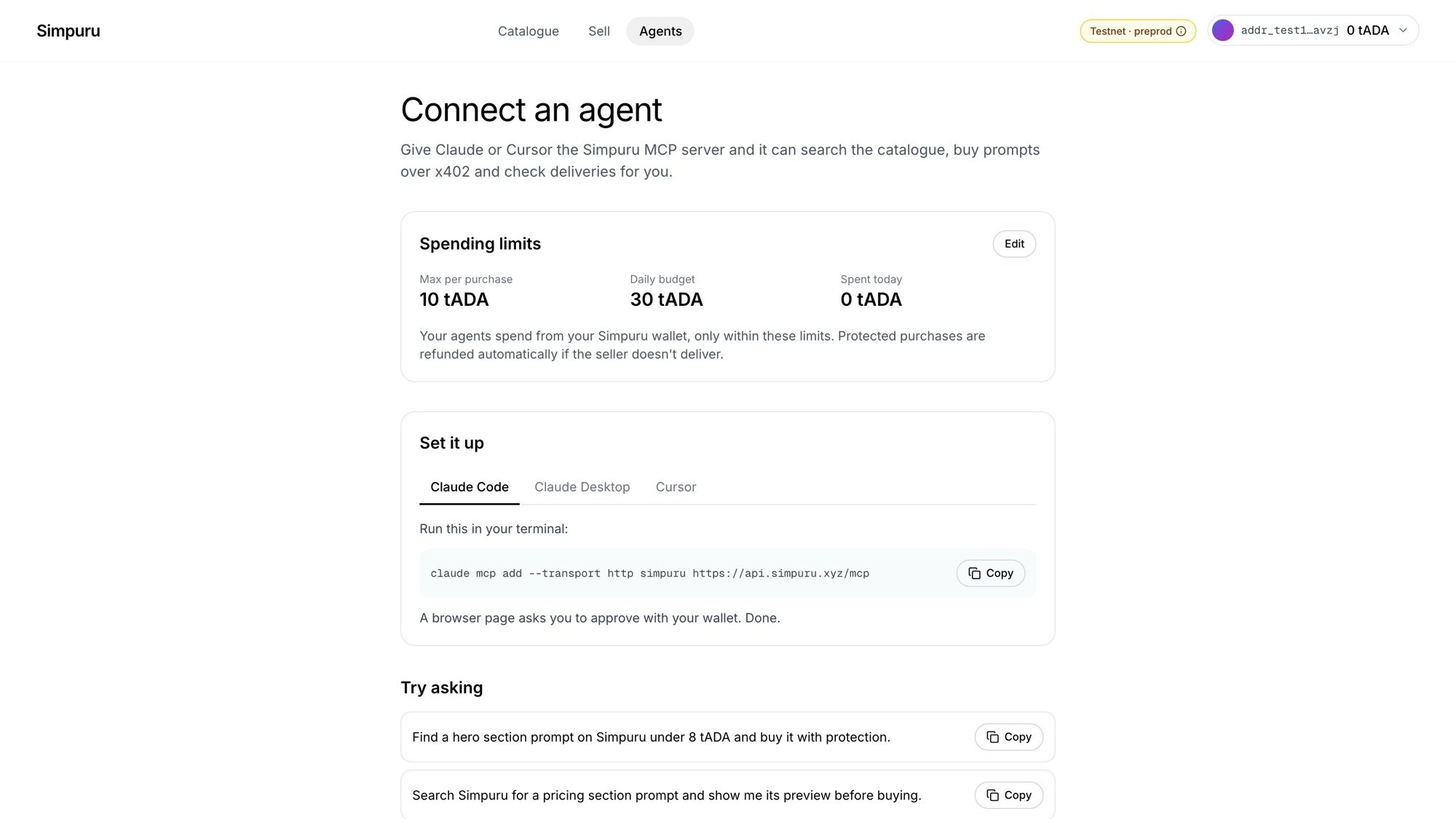
> Give Claude or Cursor the Simpuru MCP server, and it can search, buy and check deliveries for you.
 A terminal command and a wallet approval.
A custom connector with the server URL.
One entry in `mcp.json`.
Simpuru runs a hosted MCP server at `https://api.simpuru.xyz/mcp`. An agent connected to it spends from **your Simpuru wallet**, only within your [spending limits](/guides/spending-limits).
## Setup
Run this in your terminal:
```bash theme={null}
claude mcp add --transport http simpuru https://api.simpuru.xyz/mcp
```
The first time the agent uses Simpuru, a browser page asks you to approve with your Cardano wallet. That's it.
1. **Settings → Connectors → Add custom connector**
2. URL: `https://api.simpuru.xyz/mcp`
3. **Connect**, then approve with your Cardano wallet in the page that opens.
Add this to your MCP settings (`mcp.json`):
```json theme={null}
{"mcpServers":{"simpuru":{"url":"https://api.simpuru.xyz/mcp"}}}
```
Cursor opens a page to approve with your Cardano wallet.
## Try asking
* *Find a hero section prompt on Simpuru under 8 tADA and buy it with protection.*
* *Search Simpuru for a pricing section prompt and show me its preview before buying.*
* *What have I bought on Simpuru, and is any protected purchase still waiting on the seller?*
A terminal command and a wallet approval.
A custom connector with the server URL.
One entry in `mcp.json`.
Simpuru runs a hosted MCP server at `https://api.simpuru.xyz/mcp`. An agent connected to it spends from **your Simpuru wallet**, only within your [spending limits](/guides/spending-limits).
## Setup
Run this in your terminal:
```bash theme={null}
claude mcp add --transport http simpuru https://api.simpuru.xyz/mcp
```
The first time the agent uses Simpuru, a browser page asks you to approve with your Cardano wallet. That's it.
1. **Settings → Connectors → Add custom connector**
2. URL: `https://api.simpuru.xyz/mcp`
3. **Connect**, then approve with your Cardano wallet in the page that opens.
Add this to your MCP settings (`mcp.json`):
```json theme={null}
{"mcpServers":{"simpuru":{"url":"https://api.simpuru.xyz/mcp"}}}
```
Cursor opens a page to approve with your Cardano wallet.
## Try asking
* *Find a hero section prompt on Simpuru under 8 tADA and buy it with protection.*
* *Search Simpuru for a pricing section prompt and show me its preview before buying.*
* *What have I bought on Simpuru, and is any protected purchase still waiting on the seller?*
 The agent sees what the [MCP tools](/guides/agent-tools) return: prices, reputation, the content hash, and after buying, the content and the escrow deadlines.
This documentation is built and hosted on [Mintlify](https://mintlify.com), a developer documentation platform.
The agent sees what the [MCP tools](/guides/agent-tools) return: prices, reputation, the content hash, and after buying, the content and the escrow deadlines.
This documentation is built and hosted on [Mintlify](https://mintlify.com), a developer documentation platform.